How to merge PDFs into one application pack (for jobs, visas, and university)
Several PDFs become one tidy application pack — merged in your browser, with no upload.
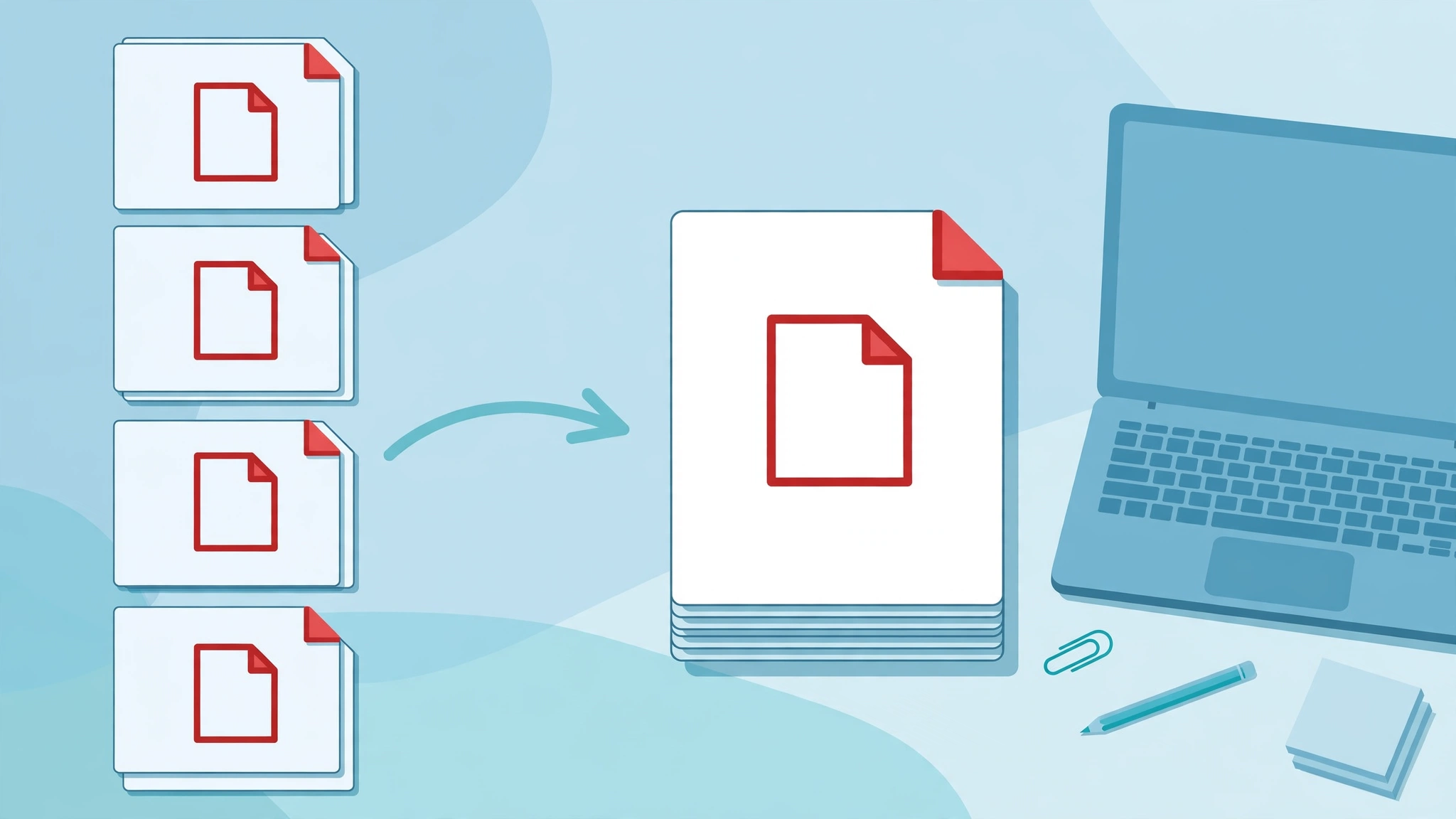
To merge PDFs into one application pack with Fixpio, add your PDFs, arrange them in the order the portal wants, and merge them in your browser. Fixpio copies pages losslessly, with no sign-up, watermark, or file-count cap, and your files are never uploaded. Download the single PDF and check its order before you upload it.
Free · No sign-up · No watermark · Files never uploaded
Steps
- Gather the pack in portal order. Follow the portal’s own checklist for what it wants and in what order — for example, the application form first, then certificates and statements. Do not rely on this page for a specific portal’s requirements; portals differ.
- Add at least two PDFs. Open Fixpio Merge PDF and add your PDF files by dropping them into the box or browsing your device. You can add files more than once if the same document belongs in two places.
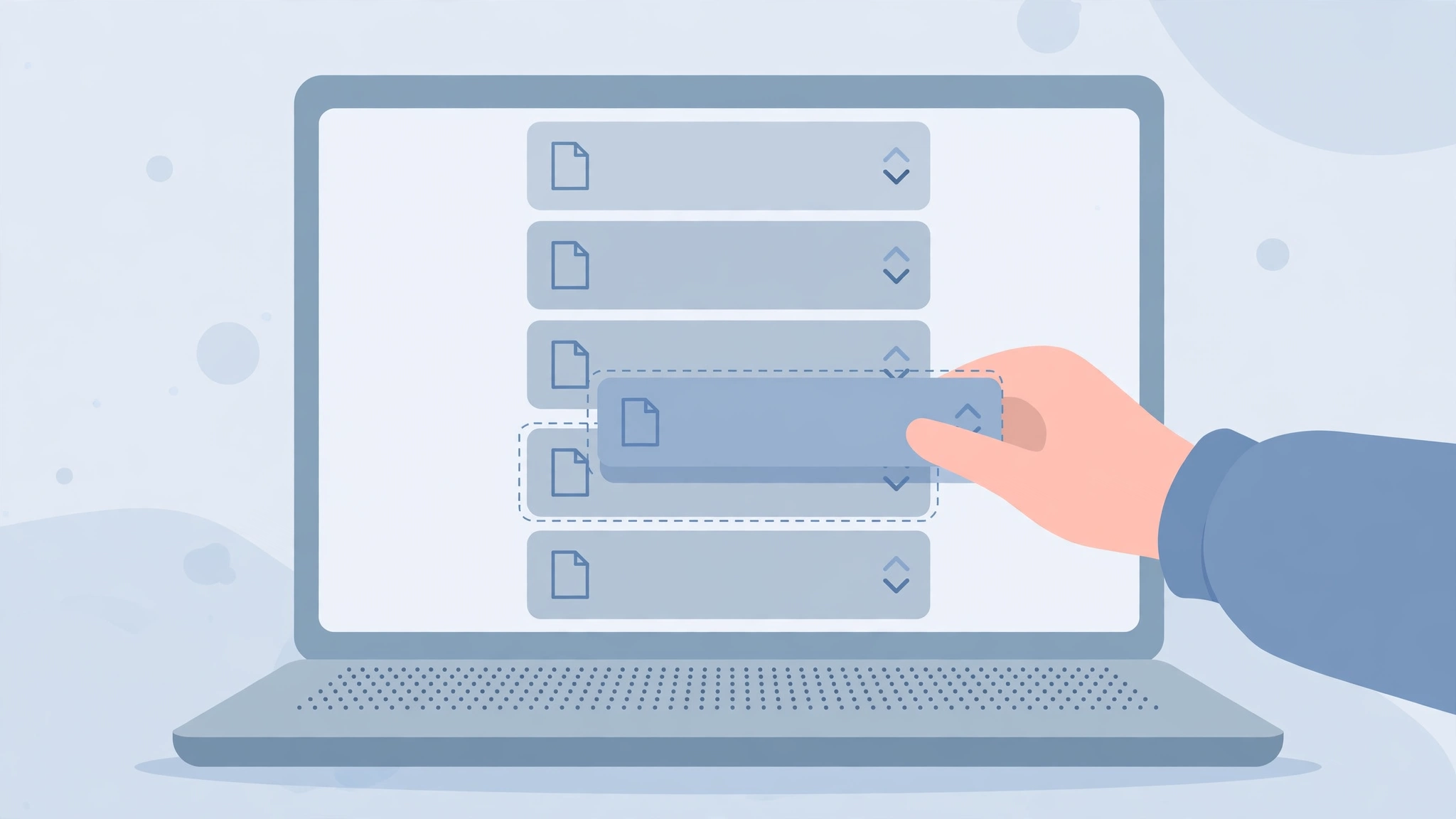
- Arrange the order. Use the up and down arrows beside each file to move it earlier or later. Every file shows its page count, and the merged PDF follows the list exactly, first file first and last file last.
- Merge and download. Press Merge PDFs. The merge happens entirely on your device — your files are not uploaded. Download the single combined PDF.
- Check before you upload. Open the merged PDF and check the page order, that no document is missing, and that the file opens cleanly. If the order is wrong, rearrange the list and merge again; your originals are never changed.
What you get
| Input | Output |
|---|---|
| Separate PDFs, in your chosen order | One PDF, in that exact order |
| Original pages, text, and images | Copied losslessly, with no re-encoding and no quality loss |
| Your original files | Unchanged, so you can rearrange and merge again |
Limits to know before you start
- No limit on file count or merges per day, as stated on the Merge PDF page. The practical ceiling is your device’s memory: merging dozens of very large scanned documents at once may strain a low-powered phone.
- An encrypted PDF cannot be opened by the in-browser engine. Remove the password in your reader first, then merge.
- The bookmark outlines of the source files are not rebuilt inside the merged document.
- Merging copies pages; it does not edit text, compress the file, or read scanned pages as text. If you also need one of those jobs, that is a different tool.
Troubleshooting
The merged order is wrong. Rearrange with the arrows and merge again. The originals are unchanged, so nothing is lost.
A very large pack stalls on a phone. Merge in two batches, then merge the two results together. That is the reliable route stated on the Merge PDF page for low-powered devices.
An encrypted PDF will not add. Remove its password in your PDF reader first, then add the unlocked copy.
The portal still says one upload only. That is exactly what the merged file is for: one tidy document instead of a trail of separate PDFs.
Frequently asked questions
How do I merge PDF files for free?
Add two or more PDFs, arrange them with the arrows, and press Merge PDFs. It costs nothing, needs no account, and has no limit on how often you do it.
Will merging reduce the quality of my PDFs?
No. Fixpio’s merger copies pages rather than re-encoding them, so text, images, and print quality in the merged file are identical to the sources.
Can I merge PDFs on my phone?
Yes. The merger runs in your mobile browser exactly as on a computer, with no app to install.
Are my application documents uploaded?
No. The merge engine runs locally in your browser, so the documents stay on your device from start to finish.
Alternative method
If you need to edit the text inside a PDF, compress a very large file, or extract text from scans, Merge PDF alone will not do that job. Use a PDF editor or desktop tool suited to that specific job, then merge the finished PDFs with Fixpio if you still need one application pack.

About the Author
Fixpio Team
We’re a passionate team dedicated to creating free, easy-to-use online tools that make everyday tasks simpler and more productive.