How to convert HEIC to JPG on Windows without installing anything
Convert HEIC to JPG free in your browser — no upload, no sign-up, quality 92. Turn iPhone photos into JPGs that open on Windows, forms and print shops.
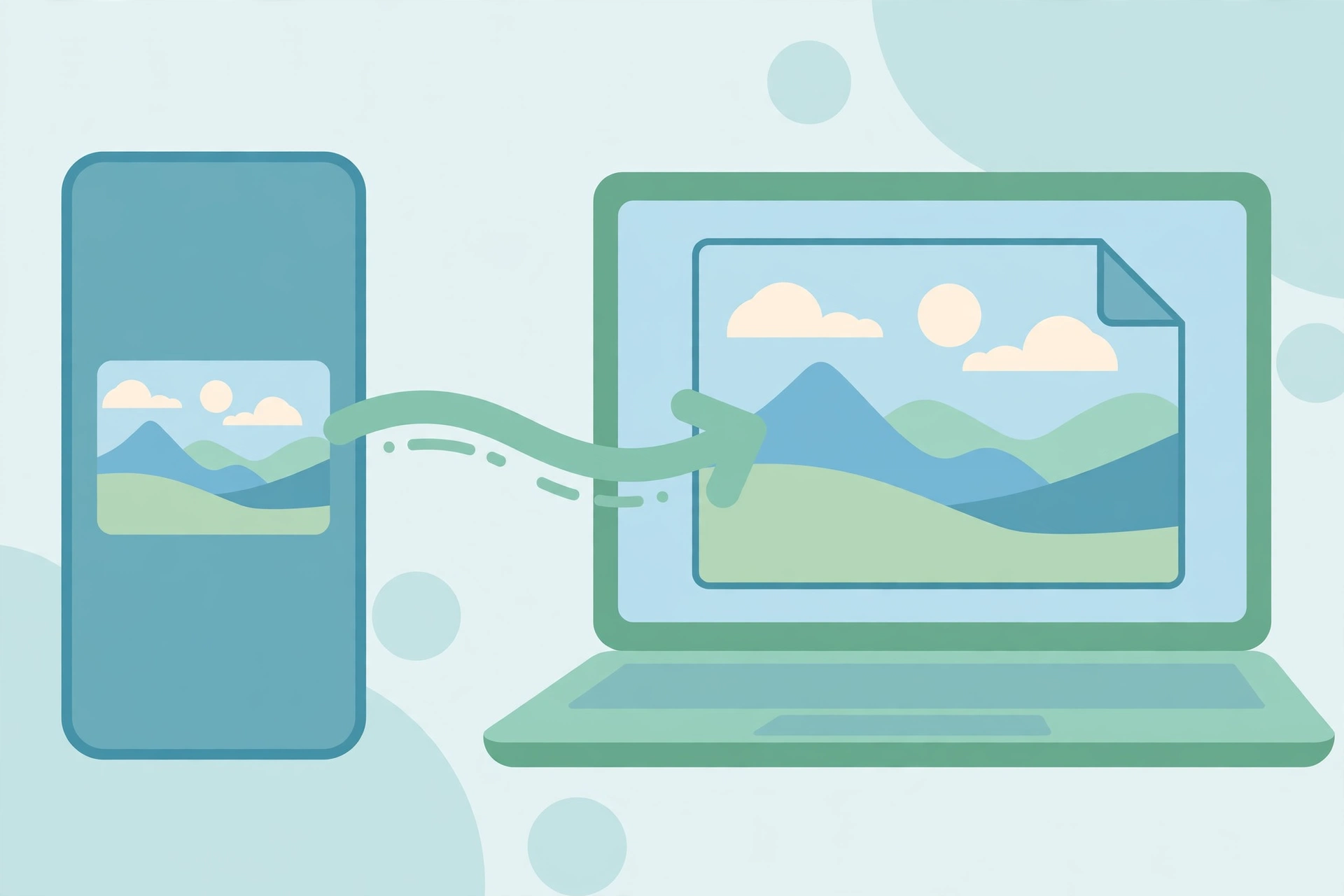
To convert HEIC to JPG on Windows without installing anything, open Fixpio HEIC to JPG, add your .heic photo, keep quality at 92, and download the JPG. Fixpio converts the photo on your device, so nothing is uploaded and there is no sign-up; the JPG opens on Windows, in forms, and at print shops.
Free · No sign-up · Photos never uploaded
How to convert HEIC to JPG on Windows
To convert HEIC to JPG on Windows with Fixpio, you need nothing installed and no account. The conversion runs in your browser, on your own device, so the photo never leaves your machine.
- Open Fixpio HEIC to JPG in your browser. Nothing to install, no sign-up, on computer, tablet or phone.
- Add your .heic photo. Drag it in or browse.
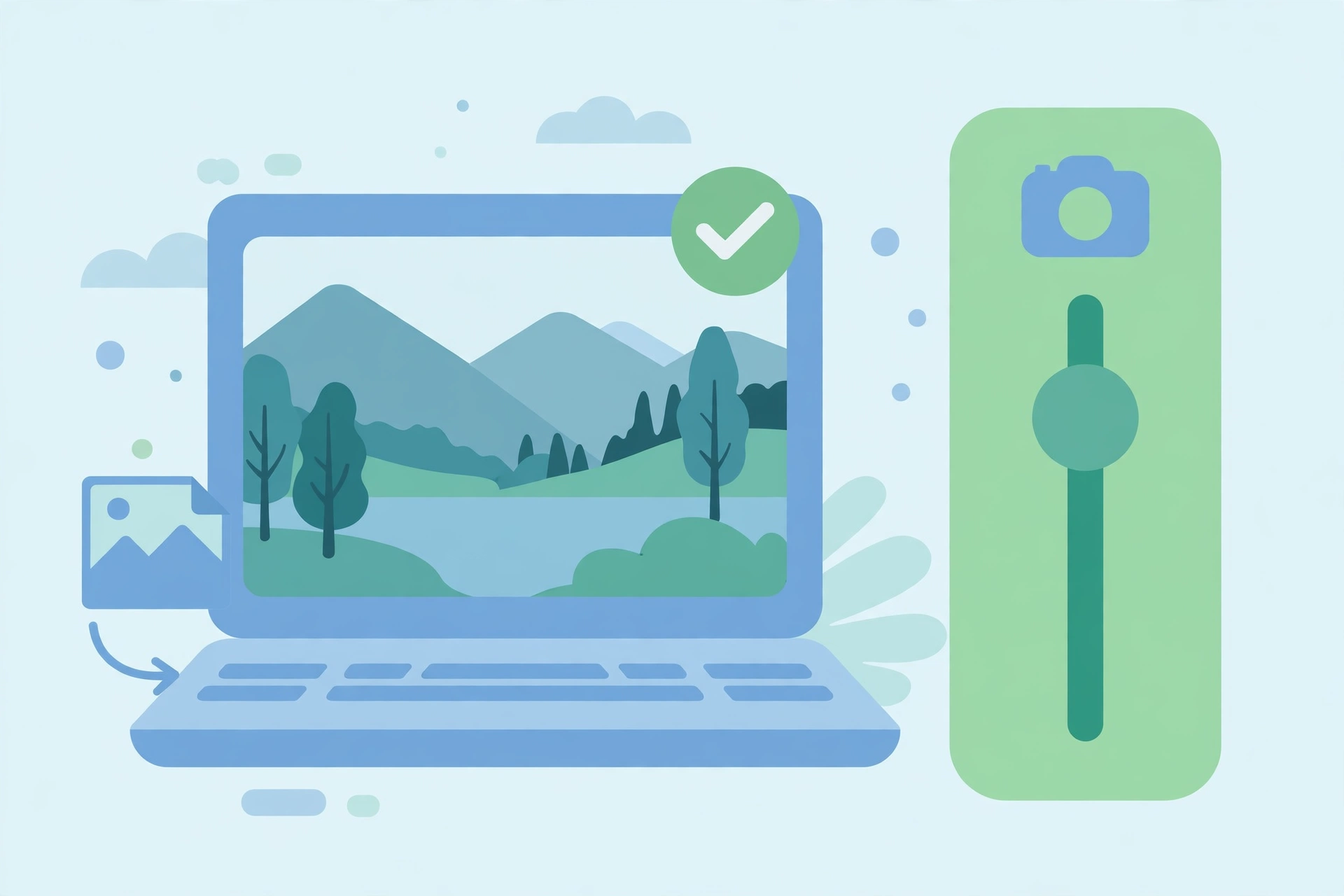
- Keep quality at 92. The default, right for everyday photos — lower it only for a smaller file.
- Press Convert to JPG, then download the result. One JPG file, ready to open on Windows.
- Check the JPG before you send it. Open it in Photos or Paint.
What you get
When you convert HEIC to JPG on Windows with Fixpio, you get:
| Input | Output |
|---|---|
| iPhone photo in .heic | One JPG file, same picture |
| Quality 92 (default, slider 10–100) | A JPG that looks the same in a normal photo, on screen or in print |
| Your photo | Never uploaded, stored or seen by Fixpio |
Why Windows can’t open HEIC photos
HEIC is the format iPhones have saved by default since iOS 11, at roughly half the size of an equivalent JPG. Windows does not understand it out of the box: support must be added through Microsoft Store extensions, which many PCs and programs never get. So a photo that opens fine on your iPhone shows an error, or nothing at all, on Windows.
Converting to JPG steps around the problem: every version of Windows opens JPG natively, with nothing extra to buy or install. That is also why forms and print shops so often list JPG as the accepted format. The simplest fix is to convert HEIC to JPG on Windows in your browser.
Will converting to JPG reduce the quality?
Technically, yes — a little. JPG compression is lossy, so some data is discarded, but at Fixpio’s quality setting of 92, the difference is not visible in a normal photo, on screen or in print.
The JPG may be larger than the HEIC, which is normal — HEIC compression is more efficient. And when you convert HEIC to JPG on Windows, start from the original photo, not a screenshot or messaging-app copy.
One honest note, labelled as a general claim rather than a Fixpio fact: converter guides note HEIC-to-JPG conversion can lose HDR metadata, wide colour gamut and Live Photo motion. Keep the HEIC as your master file; the JPG is the copy you send.
Private photos or batch conversion?
The real choice when you convert HEIC to JPG on Windows: one photo at a time with nothing uploaded, or batches that send your personal photos to a server.
| Fixpio HEIC to JPG | Adobe Express HEIC to JPG | iLoveIMG HEIC to JPG | |
|---|---|---|---|
| Free | Free, no paid tier | Free; no file-number limit, says Adobe | Free; Premium $5/month billed annually ($60/year) |
| Batch | One photo at a time | No batch limit stated | Several at once; free 30 files / 200 MB per task, Premium 120 files / 4 GB |
| Upload / privacy | Never uploaded — in your browser | Uploaded to Adobe | Uploaded; deleted within two hours |
One photo — or a few personal ones — that you do not want sent anywhere: use Fixpio. Thirty photos in one go and you do not mind uploading them: iLoveIMG’s free batch is genuinely better. Fixpio does not do batch conversion. Smallpdf has no HEIC-to-JPG tool, so it is not in this table.
Limits to know before you start
To convert HEIC to JPG on Windows, your file must be a .heic photo — the format iPhones save by default since iOS 11.
- One photo at a time — not a whole folder.
- The result is a JPG, not a HEIC file. Keep the original if you still need a HEIC — the conversion does not change it.
- Conversion does not edit the photo: it changes the file format only — no cropping, rotating or fixing.
Troubleshooting
When you convert HEIC to JPG on Windows, the cause is usually one of these:
- The file will not add. Check it is a .heic file — photos from other apps may be saved differently.
- The JPG looks different from the photo on your phone. Convert from the original HEIC, not a screenshot or messaging-app copy, at quality 92.
- The JPG is too large to send. Lower the quality slider, or send the smaller JPG only where a form asks for one.
Frequently asked questions
Can I convert HEIC to JPG on Windows for free?
Yes — free, with no sign-up and no paid tier.
Why can’t I open HEIC photos on Windows?
Windows does not understand HEIC out of the box. Converting to JPG steps around it.
Will converting to JPG reduce the quality of my photo?
A little, because JPG compression is lossy — but at quality 92 the difference is not visible.
Are my photos uploaded to a server?
No. It is converted in your browser on your own device — never transmitted, stored, or seen.
Can I convert more than one photo at a time?
Not with Fixpio — one photo at a time. iLoveIMG’s free plan converts several at once (30 files / 200 MB per task), but your photos are uploaded.
How do I stop my iPhone saving photos as HEIC?
Go to Settings > Camera > Formats > Most Compatible. New photos are then JPG; photos already on the phone stay HEIC until you convert them.
Alternative method
To open HEIC files on Windows, add support through the Microsoft Store: both the HEIF Image Extensions and the HEVC Video Extensions are needed, even for photos only. The HEVC extension has been listed at $0.99 in the US Store in secondary guides — that price was not verified live today, so check it in the Store before buying. Even then, some programs still will not accept HEIC.
Another way to convert HEIC to JPG on Windows is Adobe Express’s free converter — no stated file-number limit — but you upload each photo to Adobe. iLoveIMG is the batch option: free 30 files or 200 MB per task. Fixpio is the choice when you want the photo to stay on your own device.
Sources and date stamp — competitor facts
Fixpio facts are from its HEIC to JPG tool page, checked live on 2026-11-10. The two external sources, both checked live on 2026-11-10, are Adobe Express HEIC to JPG and iLoveIMG HEIC to JPG , with iLoveIMG’s pricing page for the free and Premium figures. Adobe’s 40 MB cap was not seen on Adobe’s own page and is not stated here.
Bottom line
To convert HEIC to JPG on Windows without installing anything, open Fixpio HEIC to JPG, add your .heic photo, keep quality at 92, and download the JPG — then check it before you send it. Your photo stays on your own device from start to finish. A whole folder at once? Use a batch converter.

ABOUT THE AUTHOR
Fixpio Team
Fixpio Team — the team behind Fixpio’s free online tools. Every guide is written by the team that builds the tools, and every guide ends at the tool that does the job.